Published August 9, 2026
How to Automate Invoicing for Your Service Business

You can reliably automate invoicing for most small and mid-size service businesses today, and the payoff shows up fast: fewer manual errors, faster cash collection, and hours reclaimed every week. Here are three concrete steps to take in the next seven days:
-
Inventory your integrations. List the tools your business already uses: accounting software (QuickBooks, Xero), payment processors (Stripe, Square, ACH), and any job management or CRM platform. These are the connection points your automation will run through.
-
Identify your invoice triggers. Map the events that should generate an invoice automatically: job marked complete, timesheet approved, subscription renewal due, or quote accepted. Triggers tied to real operational events prevent early or late billing.
-
Run a 30-day pilot on one billing stream. Pick your highest-volume, most repeatable invoice type (recurring maintenance contracts work well) and automate that stream first. Measure time-to-invoice and exceptions before expanding.
Teams that follow this sequence typically send invoices faster, collect payment sooner, and spend significantly less time on manual data entry by the end of the first month.
Key Takeaways
Automating invoicing for a service business delivers the fastest returns when triggers are tied to real job events, not calendar schedules.
| Point | Details |
|---|---|
| Start with one billing stream | Pilot recurring or single-job-type invoices first; expand after 30 days of clean results. |
| DSO improvement is measurable | Automated reminders have helped teams significantly reduce DSO per industry reporting. |
| Integrations drive the value | Connect your job management app, accounting software, and payment processor before launch. |
| Assign one owner | Name a single person responsible for the exception queue and rule updates before go-live. |
| ServlyPro fits the model | ServlyPro fires invoices on job completion, and automates follow-up reminders end to end. |
Table of Contents
-
What does invoice automation actually mean for your business?
-
What does invoice automation look like in practice with ServlyPro?
-
How should you handle exceptions and disputes in automated workflows?
-
Why event-driven automation is the right model for service businesses
What does invoice automation actually mean for your business?
Invoice automation is the use of software, rules, and integrations to handle invoice creation, delivery, payment reminders, and reconciliation without manual intervention at each step. The industry term is accounts receivable automation (AR automation) on the outbound side, though most service businesses use “invoice automation” to cover the full cycle from billable event to payment posted.
For practical planning, there are three levels of automation:
Template and scheduled automation covers recurring invoices sent on a fixed calendar: monthly retainers, subscription fees, or scheduled maintenance contracts. The software builds the invoice from a saved template and sends it on the defined date. Live Oak Bank notes that this approach alone shortens the gap between billable work and invoice delivery, which directly improves on-time payment rates.
Rule-based automation adds logic: send an invoice when a condition is met (e.g., a date passes, a dollar threshold is reached, or a billing cycle closes). This layer handles more complex billing schedules without requiring manual triggers.
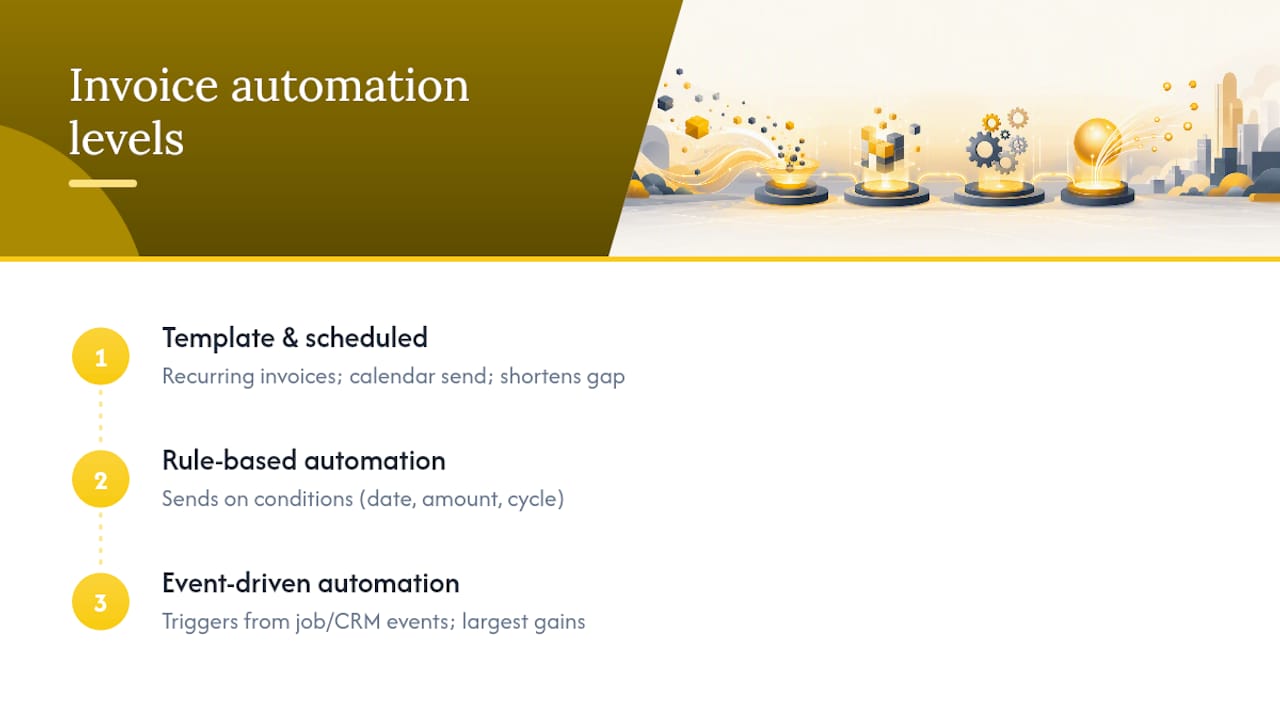
Event-driven automation is where the real efficiency gains live for service businesses. The system listens for a status change in your job management app or CRM (job marked complete, quote accepted, technician clocks out) and fires the invoice automatically. Workato’s invoice automation guide identifies event-driven integrations as the pattern that delivers the largest efficiency gains and the cleanest straight-through processing rates.
A brief note on AI and OCR: for businesses that receive vendor bills or need to process scanned client documents, AI-assisted extraction reads invoice fields from PDFs or images and maps them to your chart of accounts. Extraction accuracy determines whether those invoices flow straight through or pile up in an exception queue.
What are the real business benefits of automating invoices?
The core benefits are measurable, and they compound quickly once your workflow is running:
-
Faster time-to-invoice: Invoices go out within minutes of a job closing, not days later when someone finds time to type them up.
-
Lower cost-per-invoice: Manual invoice processing costs significantly more per document than automated processing, once you factor in labor, rework, and late-payment follow-up.
-
Fewer errors: Automated systems pull data directly from job records, eliminating transcription mistakes that create disputes and delay payment.
-
Improved days sales outstanding (DSO): Industry reporting cited by Built.ai shows North American B2B DSO averages around 42 days. Teams using automated invoicing and reminder sequences have brought that figure down to roughly 27 days.
-
Better cash flow predictability: When invoices go out consistently and reminders fire on schedule, your receivables become easier to forecast.
-
Reduced rework: Fewer disputes, fewer credit notes, fewer phone calls chasing down payment details.
KPIs to track after launch: time-to-invoice (hours from job complete to invoice sent), DSO (days), cost-per-invoice (labor + overhead), straight-through processing rate (percentage of invoices that post without human intervention), and reminder-to-payment conversion rate.
The DSO opportunity is concrete. Cutting DSO from 42 to 27 days on $50,000 in monthly receivables frees up roughly $25,000 in working capital that was previously sitting in unpaid invoices.
Automated invoicing with scheduled sending and reminders also reduces the awkward manual follow-up calls that strain customer relationships, replacing them with professional, timed messages that feel like part of your service process.
How do you calculate the ROI of invoice automation?
ROI = (Annual savings from automation) / (Annual cost of automation) × 100
Cost items to budget for:
| Cost Item | Typical Range |
|---|---|
| Software subscription | Moderate monthly cost for small businesses |
| Payment processing fees | Varies by processor (Stripe, Square, ACH) |
| Setup and configuration hours | 4 hours depending on integration complexity |
| Training and change management | 2–8 hours for a small team |
Example calculation for a 10-person service business:
Assume your team currently spends 8 hours per week on manual invoicing tasks (creating, sending, following up, reconciling). At a fully loaded cost of $30/hour, that is $240/week or roughly $12,480/year. Add an estimated amount in errors, disputes, and rework costs annually.
Automation reduces that to a small amount of exception handling per week. At the same rate, that is $60/week or $3,120/year. The Built.ai guide estimates teams typically save 5–13 hours per week once automation is running.
Software subscription costs an average monthly fee consistent with typical small business needs. Setup takes 10 hours at $30/hour: $300.
Net annual savings: ($12,480 + $1,500) - ($3,120 + $1,200 + $300) = $9,360Payback period: Under two months.
The manual process cost is consistently underestimated because it includes not just the time to type an invoice, but the time spent chasing payment, correcting errors, and reconciling bank statements by hand.
What features should your invoice automation include?
Not every tool delivers the same capabilities. Before you commit to a platform, verify it covers these core functions:
-
Invoice templates with custom branding, line-item fields, and tax rules
-
Scheduled sends for recurring billing on fixed dates
-
Event triggers that fire from job status, CRM updates, or timesheet approvals
-
Payment links embedded directly in the invoice email
-
Automated reminders and dunning sequences (pre-due, due-date, overdue at configurable intervals)
-
Two-way or three-way matching for businesses that process vendor bills against purchase orders
-
Exception queues with clear UI for reviewing and resolving flagged invoices
-
GL mapping to post invoices and payments directly to the correct accounts
-
Audit logs showing who created, modified, approved, or sent each invoice
Integration requirements: Your platform must sync with QuickBooks or Xero for accounting, connect to payment processors like Stripe, Square, or ACH networks, and ideally integrate with your CRM or job management software so triggers fire automatically.
Security and compliance: Payment data should be handled by PCI-compliant processors. Your platform needs role-based access controls, encrypted data transmission, and a complete audit trail. When invoices connect to bank feeds for reconciliation, using regulated payment processors or bank APIs matters for secure, auditable payment posting. The FDIC’s role in U.S. banking infrastructure underscores why integrating with regulated financial institutions protects your business and your customers.
Pro Tip: Integrations are the multiplier. A platform that listens to your job management app or CRM and fires invoices automatically delivers far more value than one that only sends scheduled emails. Prioritize depth of integration over the number of features listed on a pricing page.
How do you implement invoice automation step by step?
A five-stage rollout keeps risk low and builds confidence before you expand.
Stage 1: Assess and inventory
Map every invoice type your business sends: recurring contracts, one-time jobs, time-and-materials, and project milestones. Document the current process for each: who creates it, what data it needs, where errors typically happen. This inventory becomes your automation roadmap.
Stage 2: Pilot one stream
Pick your most repeatable invoice type and automate it first. Billed because they return cash-flow improvements fastest and require minimal integration effort. Set up your template, configure the trigger or schedule, and run it for 30 days. Track: straight-through processing rate, time-to-invoice, exceptions per 100 invoices, and first-month cash collected.
Stage 3: Expand integrations
Once the pilot is stable, connect your accounting software and payment processor. Map GL codes. Test that payments post correctly to the right accounts. Add your job management platform so job-complete events trigger invoices automatically.
Stage 4: Add reminders and reconciliation
Configure your reminder sequence: a pre-due notice (3 days before), a due-date reminder, and overdue follow-ups at 7 and 14 days. Set up bank-feed reconciliation so payments match automatically. This is where DSO improvements become visible.
Stage 5: Governance and continuous tuning
Assign one owner for the automation workflow. Review exception rates monthly. Adjust tolerance thresholds, reminder timing, and GL mapping as your business grows. NetSuite’s guide to invoice automation describes this as replacing manual routing with business rules that improve as invoice volume scales.
Sample event-driven workflow for a field service job:
-
Technician marks job complete in the job management app
-
System pulls job details, labor hours, and materials line items
-
Invoice generates from the approved template with the correct totals
-
Invoice sends to the customer with an embedded payment link
-
Payment webhook fires when the customer pays; the transaction posts to the GL automatically
How do you choose the right invoice automation solution?
Use these questions to evaluate any vendor or platform:
-
What integrations does it support natively? Ask for a full list: accounting, payment processors, CRM, job management, time-tracking.
-
What is the straight-through processing rate for businesses like yours? Get a specific number, not a range.
-
How does it handle exceptions? Ask to see the exception queue UI in a live demo.
-
How does it handle failed payments? Retry logic, customer notification, and dunning sequences should be configurable.
-
Does it support GL mapping and multi-account posting? Critical for accurate books.
-
What audit log does it produce? You need a timestamped record of every action for compliance and dispute resolution.
-
What are the SLAs for support and exception resolution? Especially important during your first 90 days.
-
What does onboarding look like? Ask how long setup takes and who owns configuration.
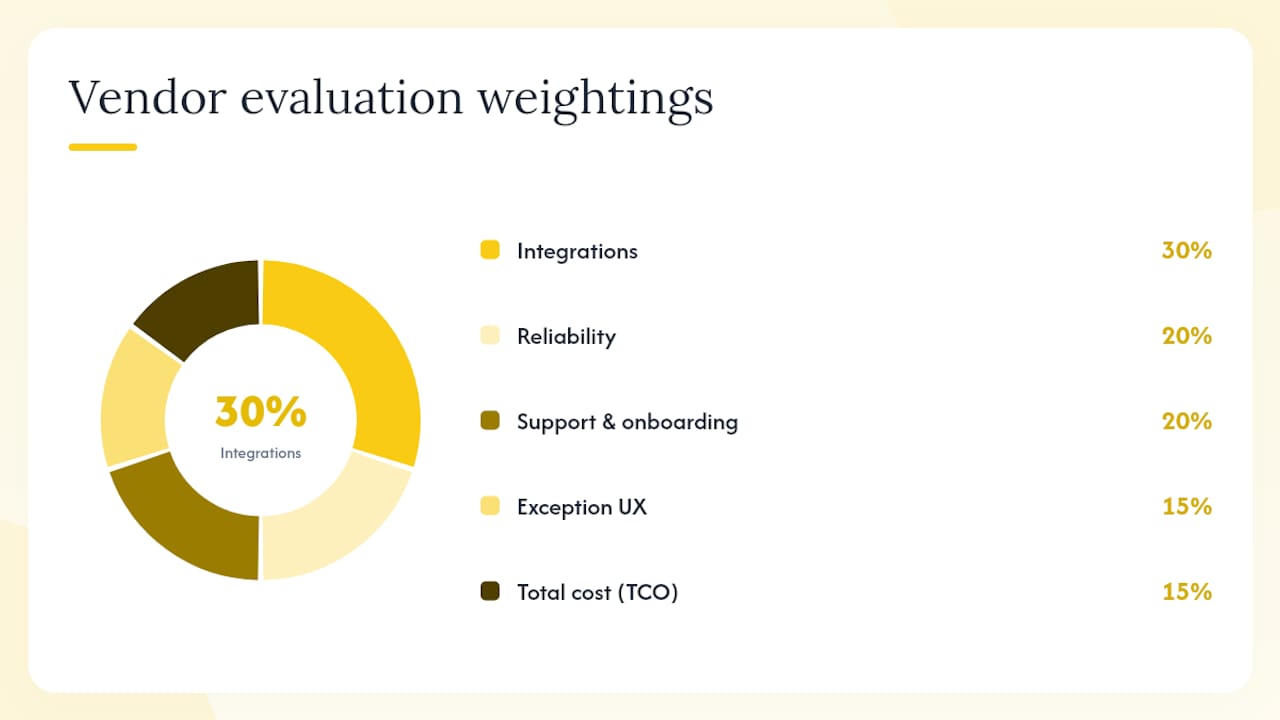
Suggested weighting for field-service SMBs:
-
Integrations (job management, accounting, payments): 30%
-
Reliability and straight-through processing rate: 20%
-
Support and onboarding quality: 20%
-
UX for exception handling: 15%
-
Total cost of ownership: 15%
Red flags to watch for in demos: manual CSV exports as the primary data transfer method, reminder sequences limited to one or two steps, no visible audit trail, and no native connection to your job management platform.
For U.S. contractors specifically, ServlyPro’s field service platform is built around the job lifecycle that drives these triggers, making it a natural fit for the event-driven model described above.
What does invoice automation look like in practice with ServlyPro?
Before automation (a real ServlyPro customer scenario):
A mid-size plumbing contractor with 6 technicians was creating invoices manually after each job, typically 1–2 days after completion. Payment follow-up happened by phone. Average time-to-invoice: 36 hours. DSO: over 40 days. The office manager spent roughly 10 hours per week on invoicing and collections.
After implementing ServlyPro’s automated invoicing:
-
Time-to-invoice dropped to under 2 hours (invoices fire when the job is marked complete)
-
DSO improved toward the 27-day benchmark reported for businesses using automated reminders
-
The office manager reclaimed approximately 7–8 hours per week
-
Payment collection in the first month improved because invoices arrived while the job was still fresh in the customer’s mind
ServlyPro implementation checklist:
-
Have a sample completed job ready to walk through the trigger-to-invoice flow
-
Identify which team member will own the automation workflow and exception queue
-
List your current billing rules (labor rates, materials markup, tax settings)
-
Enable follow-up automation for reminder sequences during setup
Transparency note: ServlyPro is the platform behind this article. The scenario above reflects the type of results the platform is designed to produce. Your specific results will depend on your business volume, integration setup, and how consistently your team uses the job-complete trigger.
What mistakes do teams make when they automate invoicing?
Most automation failures trace back to six predictable problems:
-
Weak or missing triggers: Invoices fire on a schedule instead of on real events, causing early or late billing. Fix: map every trigger to an operational event before you configure anything.
-
Poor master data: Customer records with wrong emails, missing tax IDs, or incorrect GL codes cause exceptions immediately. Fix: clean your customer and product/service master data before go-live.
-
No exception playbook: Teams set up automation but have no defined process for handling flagged invoices. Fix: write a one-page playbook before launch: who reviews exceptions, within what timeframe, and what the escalation path is.
-
Over-automating first-time invoices: Billed.app warns that automation magnifies poor master data, and first-time enterprise invoices often have non-standard requirements. Fix: keep human review on new customers until two or three invoices have processed cleanly.
-
Ignoring bank-side reconciliation: Invoices send automatically but payments still get matched manually. Fix: connect your bank feed or payment processor webhook from day one so the full cycle closes automatically.
-
No assigned owner: Automation drifts when no one is accountable for exception rates, rule updates, or integration failures. Fix: name one person as the automation owner before you go live.
Pro Tip: Build your exception queue with an SLA: any flagged invoice older than 24 hours gets escalated to a named person. A queue without a time limit becomes a backlog.
How should you handle exceptions and disputes in automated workflows?
Even well-configured automation produces exceptions. The goal is not to eliminate them entirely but to handle them fast and consistently.
Common exception types in service invoicing:
-
Invoice amount does not match the customer’s purchase order or approved quote
-
Customer disputes a line item (labor hours, materials quantity, or rate)
-
Payment fails due to an expired card or insufficient funds
-
Invoice bounces because of an incorrect email address
-
Tax calculation error due to a missing or wrong tax code
The right structure for exception handling:
Route all flagged invoices to a single exception queue with clear ownership. Each exception should display the reason for the flag, the original job record, and the customer’s contact details. Your team resolves the issue, corrects the record, and resubmits. The corrected invoice then flows through the normal automated path.
For disputes specifically, the process should be: acknowledge the dispute in writing within 24 hours, pull the original job record and any photos or sign-off documentation, and respond with a corrected invoice or a clear explanation. Extend notes that when extraction or matching fails on non-standard layouts, exception queues can overwhelm teams quickly. The fix is a well-defined triage process, not more automation.
Failed payments need their own sequence: retry the payment automatically after 24 hours, notify the customer after the first failure, and escalate to a phone call after the second. Configure this in your dunning settings so it runs without manual intervention.
Why event-driven automation is the right model for service businesses
Most invoice automation guides treat billing as a scheduling problem: set up templates, pick send dates, and let the calendar do the work. That works for SaaS subscriptions. For service businesses, it misses the point.
Your revenue is tied to work completed, not to dates on a calendar. A plumbing job that runs long, an HVAC call that gets rescheduled, a painting project that finishes a week early: none of these fit a fixed billing schedule. When invoices fire on a calendar instead of on job completion, you get early invoices that confuse customers and late invoices that delay cash flow.
Event-driven automation solves this by tying the invoice to the operational reality of your business. The trigger is the job status, not the date. That single change eliminates the most common source of billing errors in field service: the gap between when work is done and when the invoice reflects it.
The practical recommendation: start your pilot with a single job type where the completion event is unambiguous (a recurring maintenance visit, a single-trade repair call). Get that trigger-to-invoice-to-payment cycle running cleanly before adding complexity. Governance matters here too. Assign one person to own the automation, review exceptions weekly in the first month, and adjust rules based on what the exception data tells you.
ServlyPro turns job completion into cash faster
Most service businesses lose days between finishing a job and sending the invoice. ServlyPro closes that gap by firing invoices the moment a job is marked complete, with payment links included and follow-up reminders that run automatically until the balance is paid.
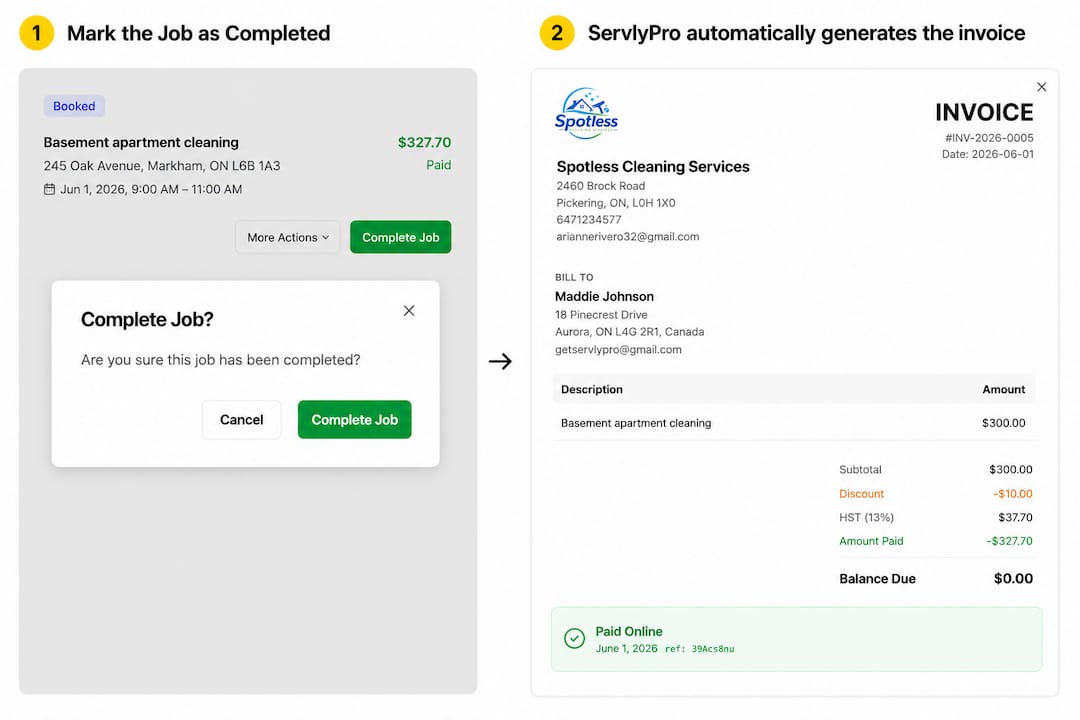
The platform supports Stripe and other payment processors, and gives your team a visual job board where every status change is a potential billing trigger. Setup is guided, onboarding support is included, and pricing runs on a per-user monthly subscription with a 7-day free trial so you can test the full workflow before committing.
To get the most from your demo, have a sample job ready, bring your chart of accounts or a screenshot, and know your current billing rules. Start your free trial or book a demo at ServlyPro and see how quickly the job-complete-to-invoice cycle can run for your business.
Further reading and primary sources
These sources support the claims and frameworks in this article and are worth consulting as you plan your implementation:
-
Built.ai: How to Automate Invoicing — Covers implementation stages, DSO benchmarks from the Atradius 2024 Payment Practices Barometer, and estimated hours saved per week. Read this for the ROI framework and stage-by-stage rollout guidance.
-
NetSuite: Automated Invoice Processing Guide — Explains PO matching, approval routing, and GL posting in detail. Useful if your business processes vendor bills as well as outbound invoices.
-
Workato: Invoice Automation Guide — The clearest explanation of event-driven integration patterns and why CRM or job-management triggers outperform scheduled runs. Read this before configuring your triggers.
-
Billed — Practical advice on where to start (recurring invoices, reminders, bank-feed matching) and a clear warning about master data quality. Good pre-launch checklist material.
-
Live Oak Bank: How to Automate Invoicing and Get Paid Faster — Focused on the connection between faster invoice delivery and on-time payment rates. Useful for building the business case internally.
-
FDIC: What We Do — Background on U.S. banking infrastructure and deposit protections. Relevant when evaluating payment processors and bank-feed integrations for security and compliance.
Sources
-
How to Automate Invoicing: Step-by-Step Guide for Small Business (2026)
-
Automated Invoice Processing: A Comprehensive Guide | NetSuite
-
Invoice Automation Guide: Streamline Your Process End-to-End